 Fireblaze
 Learning Guides
Image Processing in OpenCV Part 1: A Complete Beginner's Guide
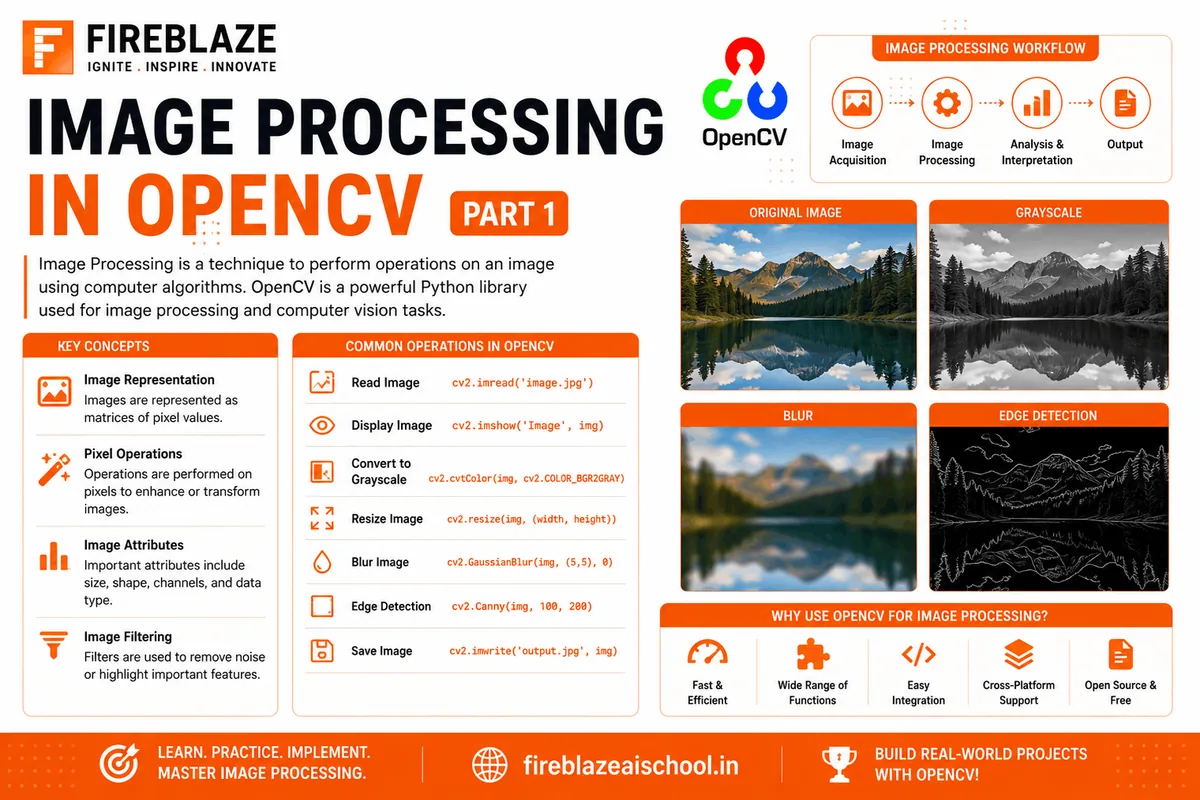
Computer Vision is one of the most exciting fields in Artificial Intelligence. It enables machines to understand, analyze, and process visual information from images and videos.
At the heart of many Computer Vision applications lies OpenCV, one of the most popular open-source libraries for image and video processing.
In this beginner-friendly guide, you'll learn the fundamentals of Image Processing using OpenCV and Python.
What is OpenCV?
OpenCV (Open Source Computer Vision Library) is an open-source library designed for:
Image Processing
Computer Vision
Object Detection
Facial Recognition
Video Analysis
Machine Learning Applications
OpenCV is widely used in:
Artificial Intelligence
Self-Driving Cars
Healthcare
Security Systems
Robotics
Why Learn OpenCV?
OpenCV simplifies complex image processing tasks and provides powerful tools for working with visual data.
Benefits include:
Fast image processing
Extensive functionality
Cross-platform support
Large developer community
Industry adoption
It is one of the most important libraries for aspiring AI Engineers and Computer Vision Developers.
Installing OpenCV
Install OpenCV using pip:
pip install opencv-python
Import OpenCV:
import cv2
Reading an Image
The first step in image processing is loading an image.
import cv2

image = cv2.imread("image.jpg")

print(image)
The image is loaded as a NumPy array.
Displaying an Image
cv2.imshow("Image", image)

cv2.waitKey(0)

cv2.destroyAllWindows()
This displays the image in a new window.
Understanding Image Dimensions
You can view image dimensions using:
print(image.shape)
Example Output:
(720, 1280, 3)
Meaning:
Height = 720 pixels
Width = 1280 pixels
Channels = 3 (BGR)
Understanding Color Channels
OpenCV uses the BGR color format instead of RGB.
Channels:
Blue
Green
Red
Example:
print(image[100,100])
Output:
[120 150 200]
Represents:
Blue = 120
Green = 150
Red = 200
Resizing Images
Resizing is commonly used for:
Faster processing
Standardizing datasets
Deep Learning models
Example:
resized = cv2.resize(
    image,
    (500,500)
)
Display:
cv2.imshow("Resized", resized)
Cropping Images
Cropping extracts specific regions of an image.
Example:
cropped = image[
    100:400,
    200:600
]
Display:
cv2.imshow("Cropped", cropped)
Cropping is useful for object detection and facial recognition tasks.
Saving Images
Save processed images using:
cv2.imwrite(
    "output.jpg",
    image
)
This stores the modified image on disk.
Converting Image to Grayscale
Many Computer Vision applications use grayscale images.
Example:
gray = cv2.cvtColor(
    image,
    cv2.COLOR_BGR2GRAY
)
Display:
cv2.imshow("Gray", gray)
Benefits:
Reduced complexity
Faster processing
Useful for edge detection
Converting Image to RGB
To convert BGR to RGB:
rgb = cv2.cvtColor(
    image,
    cv2.COLOR_BGR2RGB
)
Useful when working with Matplotlib.
Image Rotation
Rotate images using OpenCV.
Example:
rotated = cv2.rotate(
    image,
    cv2.ROTATE_90_CLOCKWISE
)
Other options:
90° Clockwise
90° Counterclockwise
180°
Flipping Images
Flip images horizontally or vertically.
Example:
flipped = cv2.flip(
    image,
    1
)
Values:
1 = Horizontal Flip
0 = Vertical Flip
-1 = Both
Drawing Shapes on Images
OpenCV allows drawing shapes directly on images.
Rectangle
cv2.rectangle(
    image,
    (100,100),
    (400,400),
    (0,255,0),
    2
)
Circle
cv2.circle(
    image,
    (250,250),
    100,
    (255,0,0),
    2
)
Line
cv2.line(
    image,
    (0,0),
    (500,500),
    (0,0,255),
    2
)
These are commonly used in Computer Vision annotations.
Adding Text to Images
Example:
cv2.putText(
    image,
    "Fireblaze AI School",
    (50,50),
    cv2.FONT_HERSHEY_SIMPLEX,
    1,
    (255,255,255),
    2
)
Useful for labels and annotations.
Understanding Pixels
An image consists of tiny units called pixels.
Each pixel contains intensity values.
For color images:
(B, G, R)
Example:
pixel = image[100,100]
Manipulating pixels enables advanced image processing techniques.
Real-World Applications of OpenCV
Facial Recognition
Used in:
Smartphones
Security Systems
Attendance Tracking
Medical Imaging
Applications include:
Tumor Detection
X-Ray Analysis
Disease Diagnosis
Autonomous Vehicles
Used for:
Lane Detection
Traffic Sign Recognition
Obstacle Detection
Retail Analytics
Applications include:
Customer Tracking
Shelf Monitoring
Product Recognition
Industrial Automation
Used for:
Quality Inspection
Defect Detection
Production Monitoring
Interview Questions on OpenCV
What is OpenCV?
OpenCV is an open-source Computer Vision and Image Processing library.
What is the Difference Between RGB and BGR?
RGB:
Red
Green
Blue
BGR:
Blue
Green
Red
OpenCV uses BGR by default.
Why Convert Images to Grayscale?
Grayscale reduces complexity and improves processing speed.
What is Image Cropping?
Cropping extracts a selected region from an image.
What is Image Resizing?
Resizing changes image dimensions while preserving content.
Why Learn OpenCV?
OpenCV is one of the most important tools for Computer Vision and AI development.
Professionals working in:
Artificial Intelligence
Data Science
Machine Learning
Robotics
Computer Vision
frequently use OpenCV for image analysis and visual intelligence applications.
Mastering OpenCV opens opportunities in some of the fastest-growing technology domains.
Final Thoughts
Image Processing is the foundation of Computer Vision, and OpenCV provides an excellent platform for learning and building real-world AI applications.
By mastering image reading, resizing, cropping, grayscale conversion, drawing functions, and image manipulation techniques, you'll build a strong foundation for advanced topics such as object detection, facial recognition, image classification, and deep learning.
In the next part, you'll explore advanced OpenCV concepts including image filtering, edge detection, thresholding, and contour detection.
Keep Reading
Related Articles
Learning Guides
Introduction to Computer Vision: A Beginner’s Guide
Discover the basics of Computer Vision, a rapidly growing field of Artificial Intelligence that enables machines to understand images and videos. Expl
All About PyCaret: Conversation with Mr. Moez Ali and Mr. Aniruddha Kalbande | EP-06
Explore PyCaret and its impact on machine learning development through an insightful conversation with PyCaret creator Moez Ali and AI expert Aniruddh
What is Data Mining? Complete Guide for Beginners
Learn what Data Mining is, how it works, key techniques, tools, applications, advantages, challenges, and its role in Data Science, Machine Learning,